Sign in and manage your account
GitW3 web access uses Sign in with W3DS. There is no username-and-password web login for users.
- Open git.w3ds.metastate.foundation.
- Select Sign in with W3DS.
- Scan the QR code with your eID wallet, or select Open your wallet when the wallet is on the same device.
- Review and approve the sign-in request in the wallet.
- Keep the browser page open until GitW3 completes the redirect.
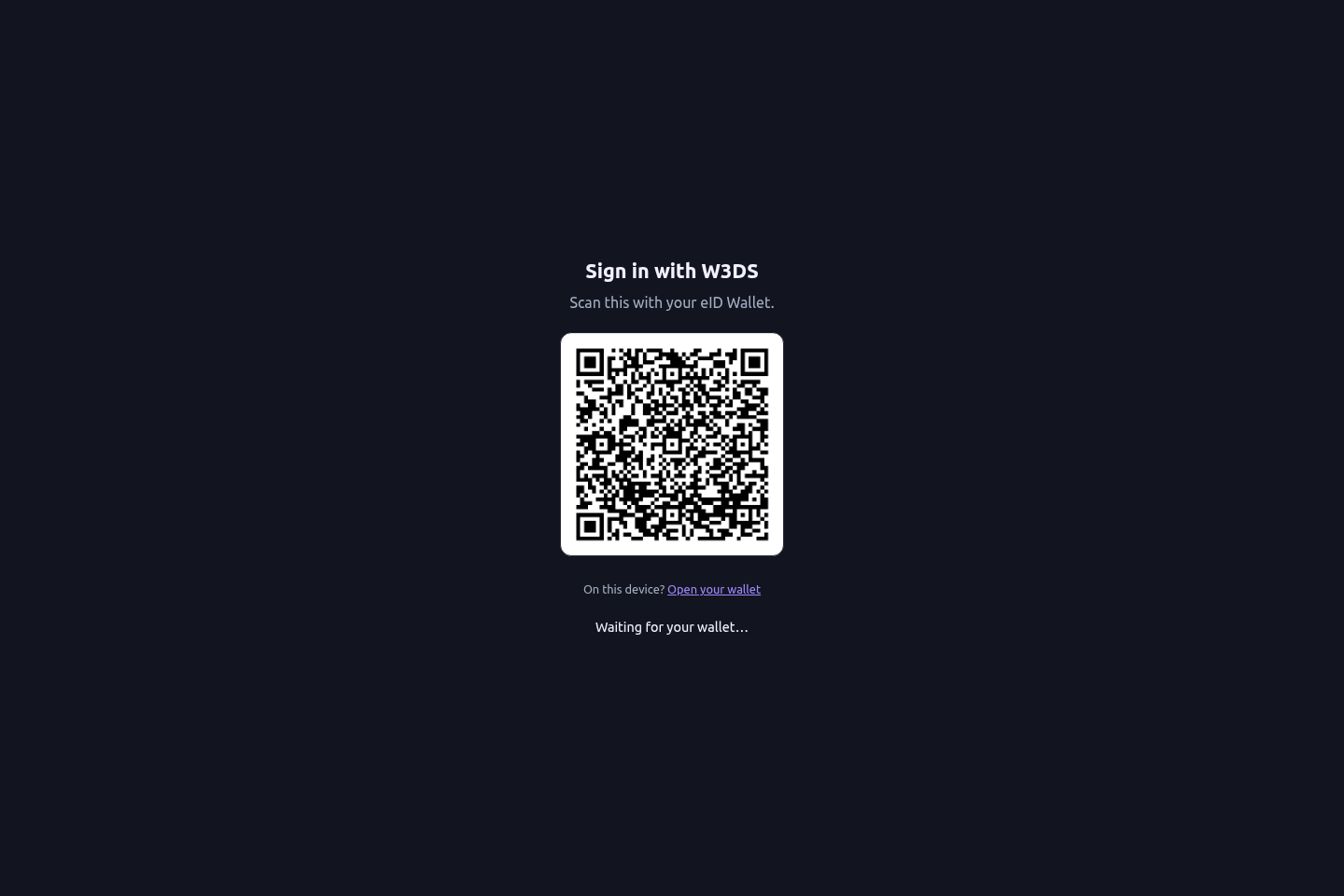
The QR code is a short-lived request. Reload the page and start again if it expires.
Your GitW3 identity
Your GitW3 username is derived from your W3DS eName. GitW3 displays a cosmetic @ in front of user and organization names to make their identity clear.
@ is presentation onlyDo not add or remove characters in a clone URL. Copy the exact HTTP or SSH URL shown by the repository. Internally, GitW3 uses the owner name without the cosmetic @ in URL paths and Git coordinates.
At sign-in, GitW3 also makes a best-effort lookup of the newest person profile in Awareness-as-a-Service (AaaS):
- the AaaS
displayNameor equivalent name becomes the friendly display name; - the AaaS avatar becomes the account avatar when it is a valid permitted HTTP(S) image; and
- if AaaS is unavailable, sign-in still succeeds and the existing or wallet-provided profile remains in place.
Because profile enrichment happens during sign-in, sign out and sign in again after changing your W3DS person profile if GitW3 still shows the previous name or avatar.
Browser sign-in versus Git authentication
The wallet signs you into the website, but command-line Git needs its own credential:
- SSH: add your public key under User settings → SSH / GPG Keys, then use the SSH clone URL. This is the recommended day-to-day setup.
- HTTPS: create a personal access token under User settings → Applications and use it as the password when Git prompts. Do not use a wallet secret or try to invent a GitW3 password.
Treat a personal access token like a password. Give it only the permissions required for the task, store it in a credential manager, and revoke it if exposed.
Sign-in troubleshooting
- The wallet did not open: scan the QR code instead, or make sure the wallet is registered as the handler for its link type.
- The QR code expired: reload the sign-in page and approve the new request.
- The approval finished but the browser did not move: keep the original tab open, then retry once with a fresh request.
- The displayed name or avatar is old: sign out and back in to trigger AaaS enrichment again.
git pushasks for a password: the browser session is not a Git credential. Configure SSH or use a personal access token over HTTPS.